Document: WM-102 P. Webb
Category: Computing 2026-09-05
Customizing my Compaq MX-11800 keyboard
Abstract
It took a long time to get this keyboard the way I wanted so here’s
everything I learned to help you not deal with my nonsense.
Body
The beginning
Back in January[1] I bought an Apple Extended Keyboard II from
eBay and had a blast typing away on old-tech. That keyboard is
still my main keyboard today. A few months ago though, I was on
Mastodon and saw a photo of a weird keyboard layout I’d never seen
before; the Compaq MX-11800[2]. Double function rows, a numpad,
AND A BUILT-IN MOUSE BALL?!! No way, I absolutely HAD to get
this thing!
I went on eBay again, bought one, and thought how cool it’d be to
also buy custom switches for it too! After doing some research I
settled on Gateron Milky Yellow Pro[3] V2s…this ALSO meant I’d
have to buy soldering tools and deal with that for the first time.
Easy-peasy right? WRONG
Soldering
I de-soldered the old switches, soldered the new switches, plugged
in the keyboard and…only a handful of keys worked. WTF!! I spent
far too much time trying to figure it out where I went wrong
because my soldering looked decent.
Annoyed, I chalked up this failure to my naivete and looked into
Mill-Max 3305 sockets[4], which allow you to hotswap switches on
mechanical keyboards. Buying these would cut down on soldering and
ensure I wouldn’t be locked into a switch type for the board I
install them into! I also bought another MX-11800 from eBay and
hoped I wouldn’t destroy this one (in my troubleshooting of the
first one, I stripped the lil’ rings from several places).
When the sockets arrived I set out to do a more careful job of
de-soldering the original switches and soldering the new Mill-Max
sockets. Added my new Gateron switches, plugged in the
keyboard and…THE SAME ISSUE OCCURRED. Most of the keys didn’t work
but the keys that did work WERE THE SAME HANDFUL AS THE FIRST
BOARD. Relieved I wasn’t a failure of a nerd, I inspected the
original switches and the new Gateron ones[5]. The Gaterons only
have two prongs while the original switches have four. The
originals also have diodes in them.
So, these four prongs are all doing something which means my fancy
Gaterons are gonna sit in their container until I buy a MODERN
keyboard (I did take a keycap off my AEK II when I first got it,
to put new keycaps on them but the thingies are too wide).
My beautiful board
All this to say, I was able to solder the original switches back
(without issue) and every key works; even the mouse! You got this
far without seeing how my keyboard looks, here you go!
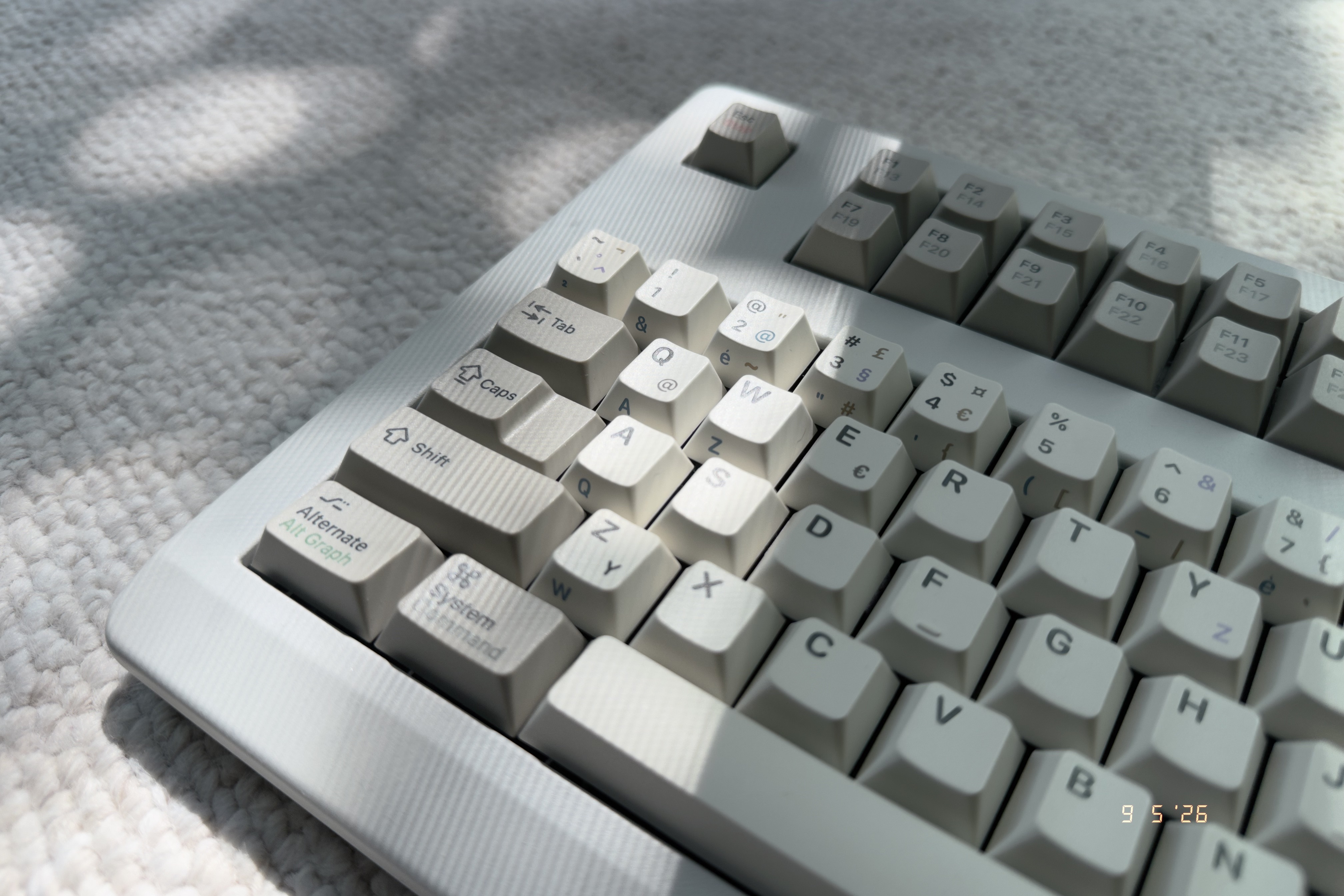
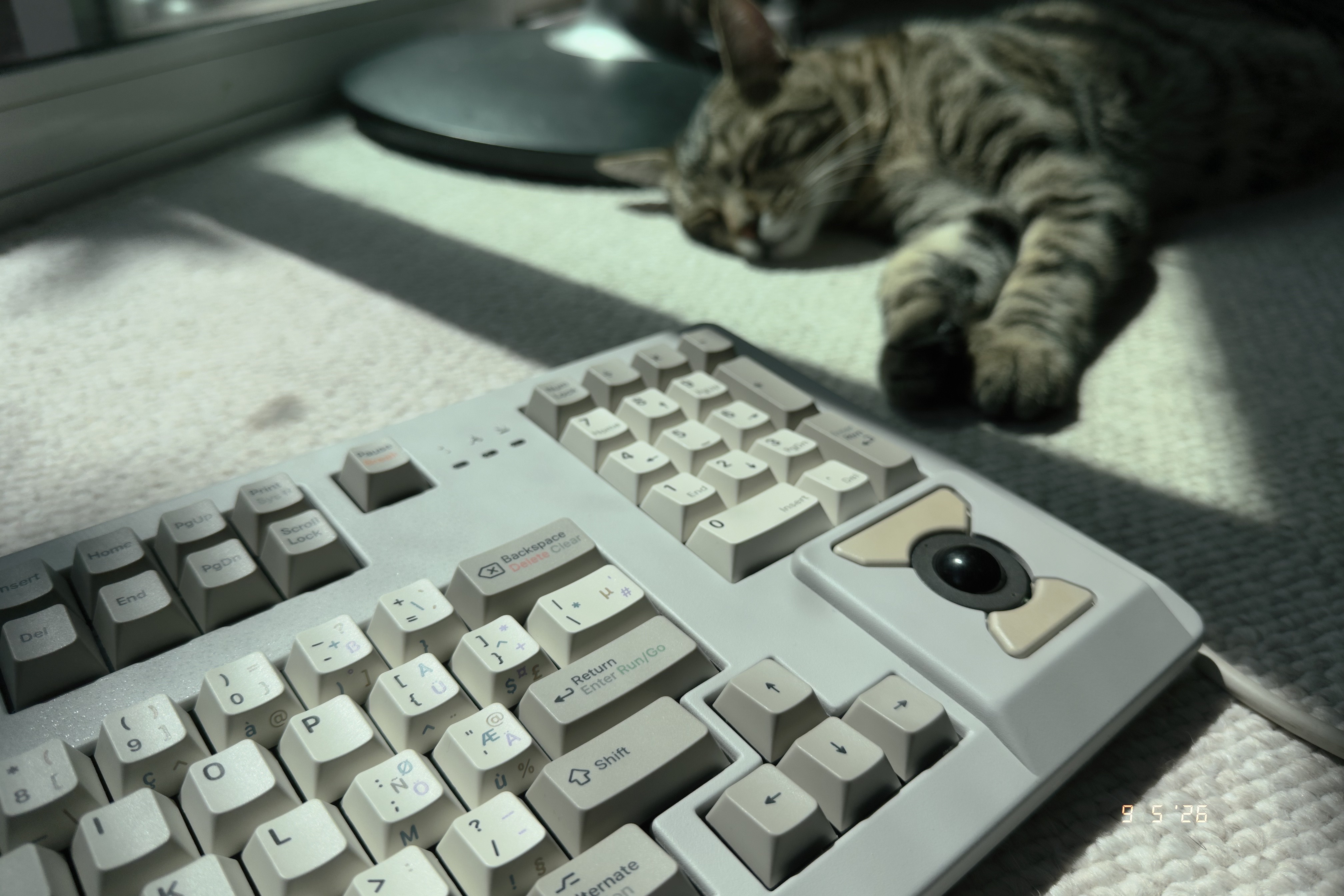
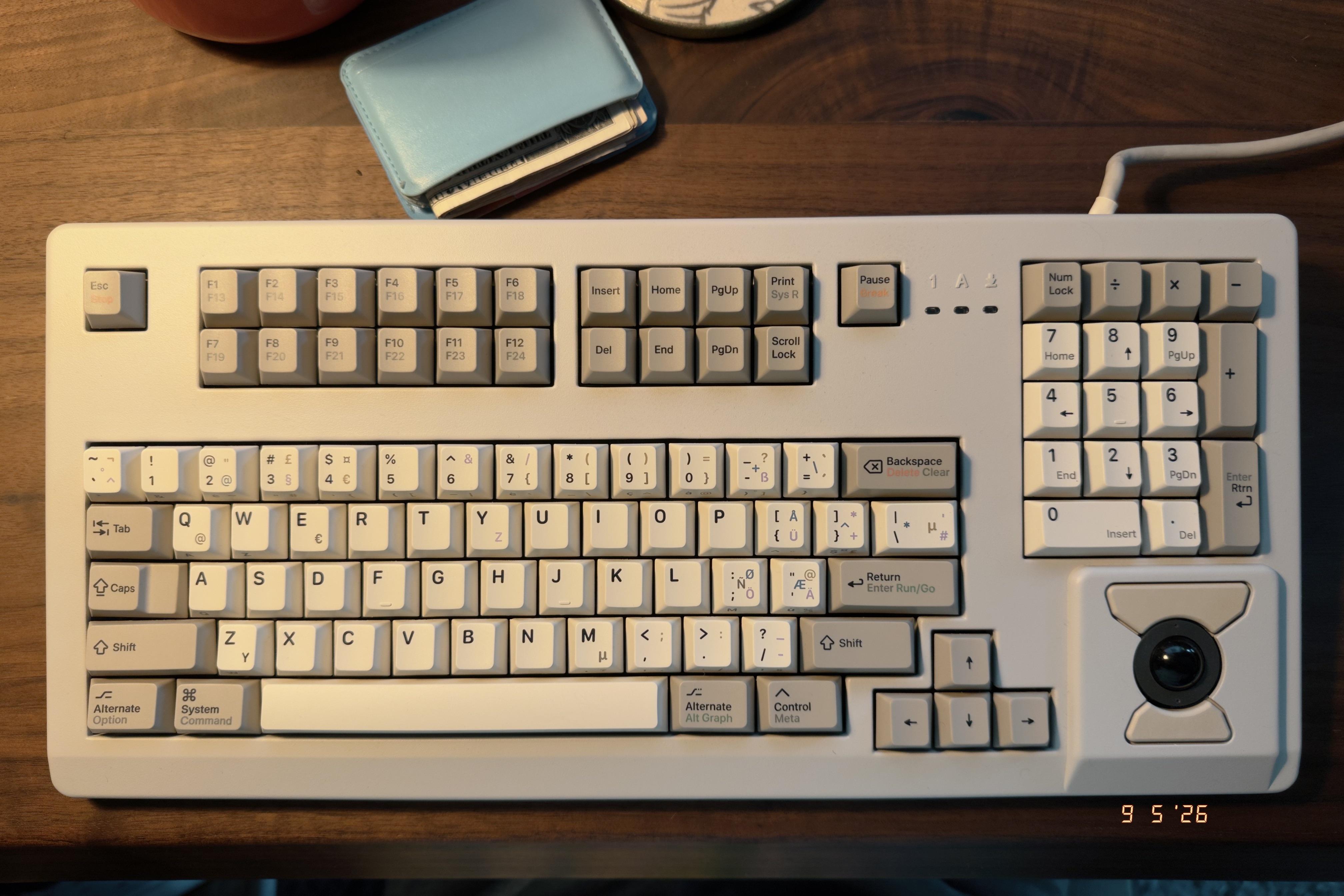 I wanted the keyboard to have a classic Mac look so I discovered
that the color closest to the original Mac color is Pantone’s PMS
420 C. MyPerfectColor[6] is an online service that will mix you
any color they have access to, which seems to be no limit. I
impatiently awaited for delivery. I use a combination of sandpaper
grit (I think 1000 and 800) before using Rust-Oleum primer,
letting that sit for a few days, and then the MPC Pantone spray.
As you can see in my glamour shots though, I forgot to spray the
mouse buttons (different piece that could detach from the
keyboard) but the people love it, it looks intentional!
The keycaps are Classic Light by MVKB[7]. I could not find them
anywhere and when I was able to give up, I found a distributor in
Australia who had ’em! Thank you, Keebz N Cables[8]!
Usage
Being that the Compaq MX-11800 was typically used in server racks
running Windows, the typical three-button layout to the left of
the spacebar doesn’t exist…so how does this work on macOS? I code
a lot and depend on shortcuts like swapping between tabs in my
codebase (also, in web browsers). ⌥ + ⌘ + Left/Right is one of
those shortcuts that’s non-negotiable.
In Karabiner-Elements I made:
- left control → left option
- left option → left command
I don’t use the Control key often and when I do need it, it’s to
the right most of the Spacebar. Actually, if I don’t use the Magic
Trackpad, I need to use right Control to navigate between spaces.
I also lose the two-finger swipe scroll without the Trackpad so I
need to use PageUp/Down.
(FUTURE PAUL EDIT: I apparently use Control to stop local servers
as well so okay, I use Control a lot. Will take getting used to,
using this key in a different place.)
The loss of the third key to the right of the Spacebar throws my
muscle memory off so I’m often pressing the wrong keys when using
shortcuts. I may just ignore the trackball if I don’t find a way
to make it move the cursor further when I flick scroll. There was
less lateral scrolling to do back when this keyboard was modern!
Because this is an old keyboard WITH a mouse, I had to look around
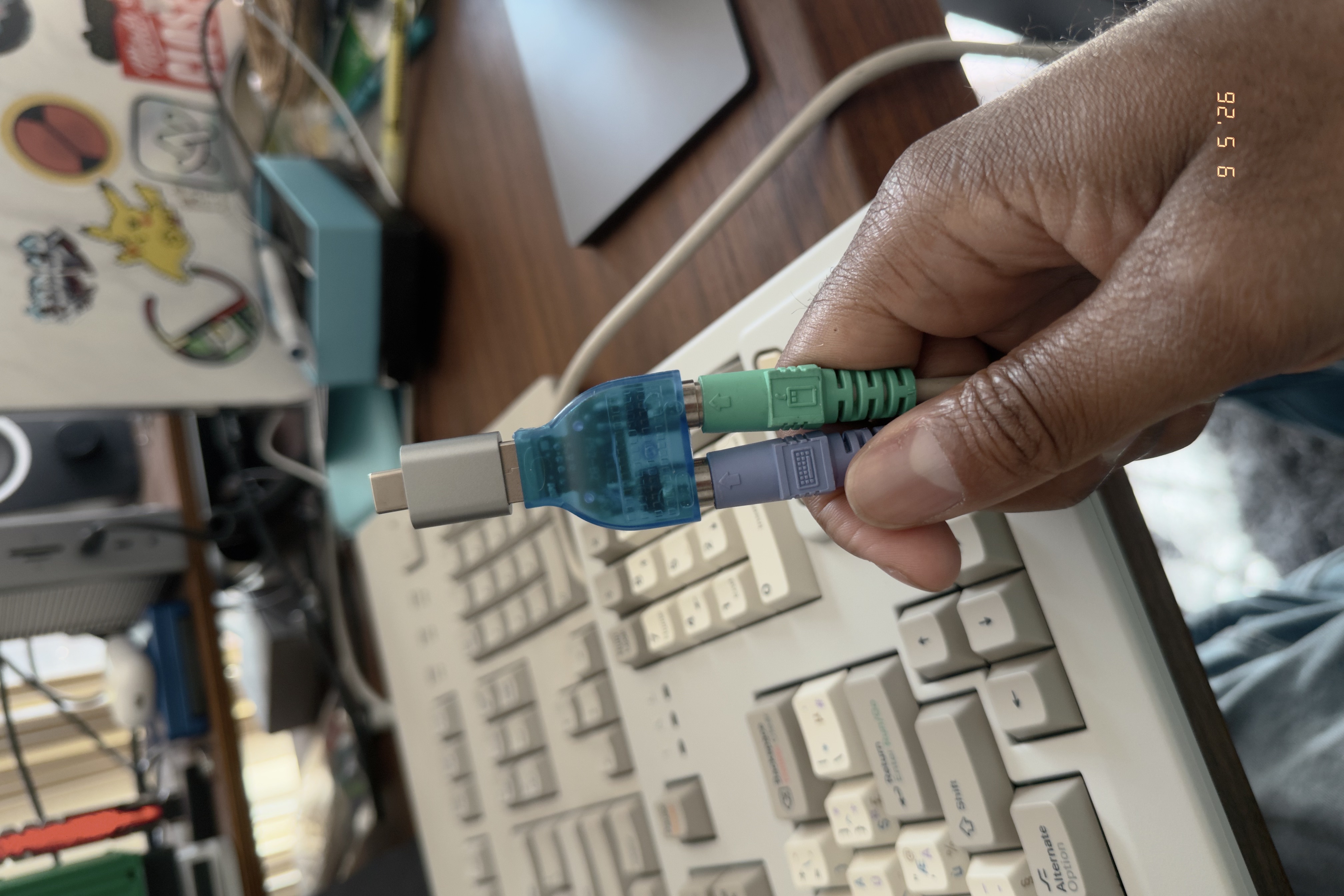
for a dual PS/2 adapter and I finally found one on Newegg[9]. It
took forEVER to ship and then to get to me. I then needed a USB-A
to USB-C adapter so as you can imagine, this looks quite silly
plugged into my Thunderbolt dock.
I wanted the keyboard to have a classic Mac look so I discovered
that the color closest to the original Mac color is Pantone’s PMS
420 C. MyPerfectColor[6] is an online service that will mix you
any color they have access to, which seems to be no limit. I
impatiently awaited for delivery. I use a combination of sandpaper
grit (I think 1000 and 800) before using Rust-Oleum primer,
letting that sit for a few days, and then the MPC Pantone spray.
As you can see in my glamour shots though, I forgot to spray the
mouse buttons (different piece that could detach from the
keyboard) but the people love it, it looks intentional!
The keycaps are Classic Light by MVKB[7]. I could not find them
anywhere and when I was able to give up, I found a distributor in
Australia who had ’em! Thank you, Keebz N Cables[8]!
Usage
Being that the Compaq MX-11800 was typically used in server racks
running Windows, the typical three-button layout to the left of
the spacebar doesn’t exist…so how does this work on macOS? I code
a lot and depend on shortcuts like swapping between tabs in my
codebase (also, in web browsers). ⌥ + ⌘ + Left/Right is one of
those shortcuts that’s non-negotiable.
In Karabiner-Elements I made:
- left control → left option
- left option → left command
I don’t use the Control key often and when I do need it, it’s to
the right most of the Spacebar. Actually, if I don’t use the Magic
Trackpad, I need to use right Control to navigate between spaces.
I also lose the two-finger swipe scroll without the Trackpad so I
need to use PageUp/Down.
(FUTURE PAUL EDIT: I apparently use Control to stop local servers
as well so okay, I use Control a lot. Will take getting used to,
using this key in a different place.)
The loss of the third key to the right of the Spacebar throws my
muscle memory off so I’m often pressing the wrong keys when using
shortcuts. I may just ignore the trackball if I don’t find a way
to make it move the cursor further when I flick scroll. There was
less lateral scrolling to do back when this keyboard was modern!
Because this is an old keyboard WITH a mouse, I had to look around
for a dual PS/2 adapter and I finally found one on Newegg[9]. It
took forEVER to ship and then to get to me. I then needed a USB-A
to USB-C adapter so as you can imagine, this looks quite silly
plugged into my Thunderbolt dock.
 Something that was supposed to take a few weeks wrt shipping took
several months because I didn’t know what I didn’t know but now I
know, y’know? That’s worth something. 🕸️
Something that was supposed to take a few weeks wrt shipping took
several months because I didn’t know what I didn’t know but now I
know, y’know? That’s worth something. 🕸️
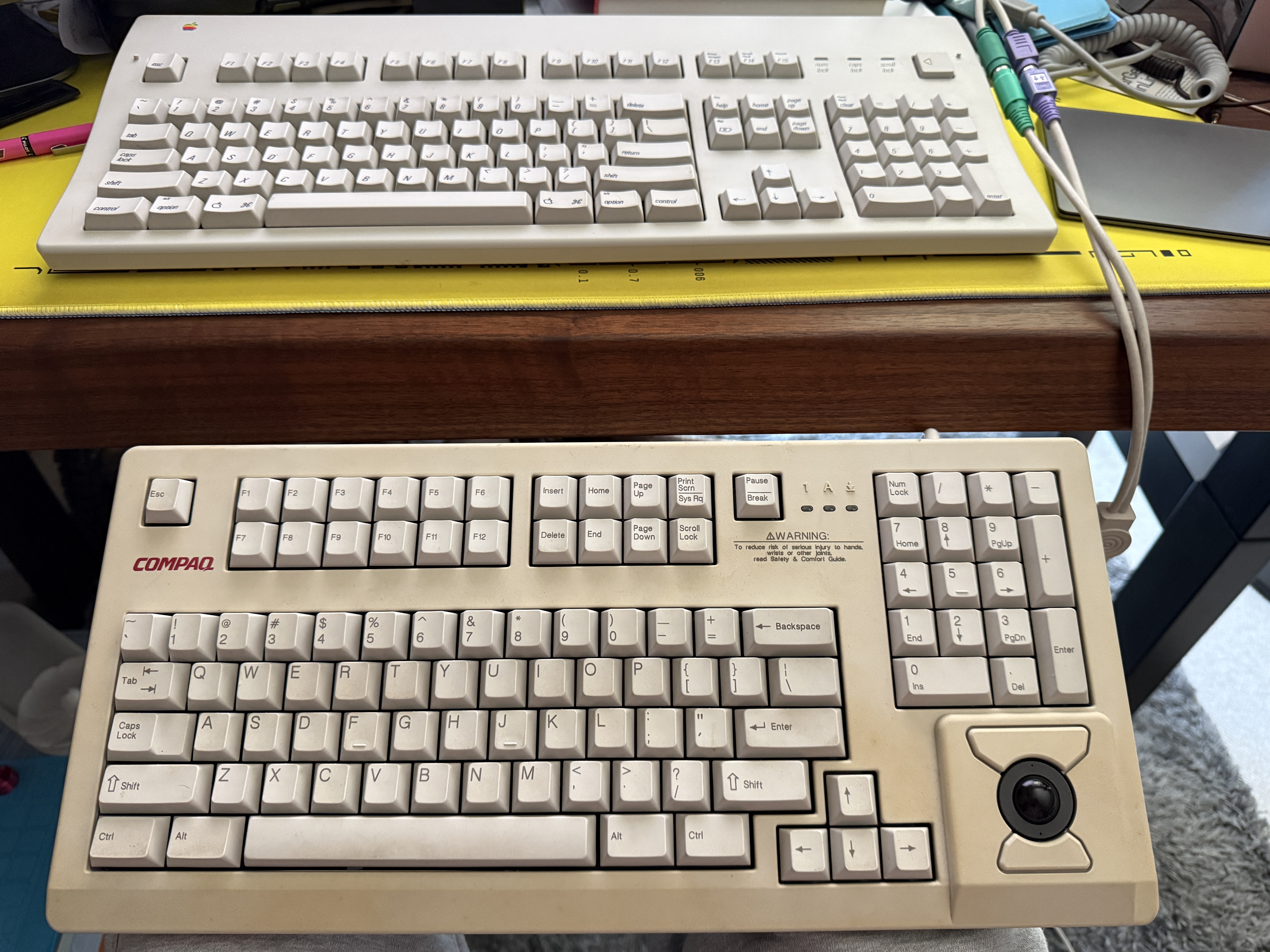
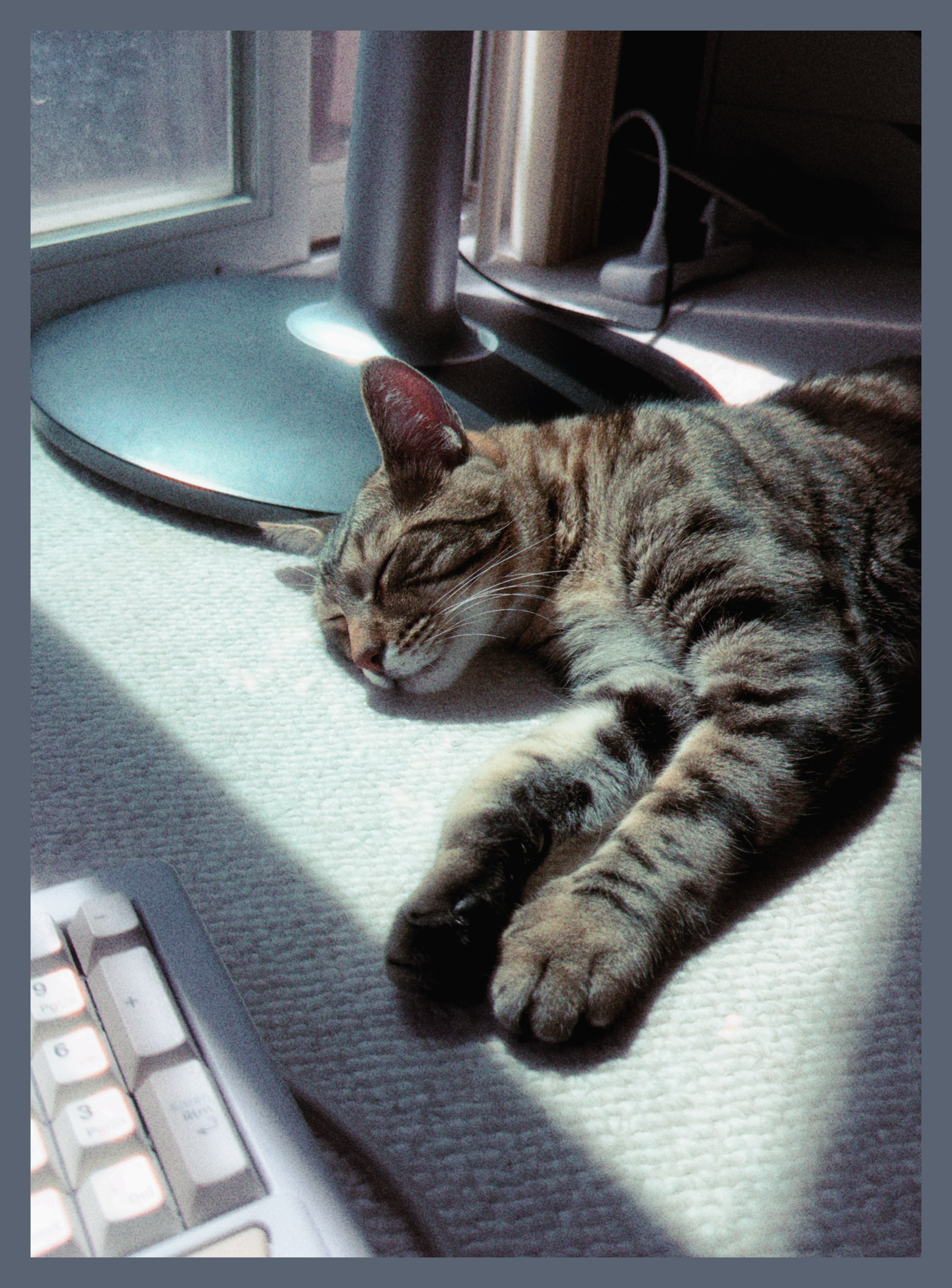 EDIT: It has occured to me that people may want to see what the
keyboard looked like before I painted it.
EDIT: It has occured to me that people may want to see what the
keyboard looked like before I painted it.